Showing posts with label VNX2. Show all posts

Jul 24, 2015

EMC - VNX2 - Storage Analytics for VNX


EMC VNX VNX2 Technical Update - Deep Dive
Overview Link

Virtual VNX: Overview, Architecture & Use Cases

VNX Overview

Vnx series-technical-review

EMC VNX Unified Best Practices For Performance:Applied Best Practices Guide

NAS Meets SAN – an intro to VNX Unified

EMC VNX Monitoring and Reporting

EMC Storage Analytics for VNX includes a storage-only version of VMware vCenter Operations Manager and the EMC Adapter. The EMC Adapter collects storage performance and capacity metrics from VNX File and Block, and creates three custom dashboards:
  •  Storage Topology
  •  Storage Metrics
  •  VNX Overview
The adapter can be installed on the storage-only version of VMware vCenter Operations Manager or plugged in to your existing VMware vCenter Operations Manager environment. EMC Storage Analytics for VNX delivers actionable performance analysis and enables customers to quickly identify and resolve performance and capacity issues for VNX series systems in virtual and physical environments. Other benefits include the ability to:
  •  Simplify storage operations management with powerful visualization and topology views
  •  Proactively optimize storage performance and efficiency across physical and virtual environments with deep storage analytics and dynamic thresholding
  •  Maintain service levels by quickly troubleshooting performance abnormalities and immediately remediating errors

Launch EMC Storage Analytics
The last EMC monitoring solution you will be exploring is EMC Storage Analytics (ESA). ESA leverages VMware vCenter Operations Manager to proactively monitor storage performance and efficiency across physical and virtual environments. For customer environments that utilize VNX systems as back-end storage for their VMware infrastructure, ESA collects performance and capacity data for storage analysis. In addition, it can be used in troubleshooting system abnormalities or in forecasting for future storage needs. Login to EMC Storage Analytics
  • 1. On your Windows Desktop, launch the Internet Explorer shortcut labeled EMC Storage Analytics
  • 2. When a certificate error appears when you navigate to EMC Storage Analytics, click Continue to this website


Getting to Manage Adapter Instances window
The VNX File and VNX Block each require an adapter instance. For VNX Block, only a single Storage Processor Adapter instance is required for each array. In the Storage System Selector, you can see that the VNX-Block and VNX-File systems have already been added to EMC Storage Analytics.
For users to traverse health trees from the virtual environment into the storage environment, EMC Storage Analytics maps LUNs from the storage system to datastores mounted on the ESXi server. To create these maps, EMC Storage Analytics uses the VMware vSphere connection type defined for the EMC Adapter.

  • 1. Hover over Environment
  • 2. Hover over Configuration in the drop down
  • 3. Click Adapter Instances...


Adding a vCenter Adapter Instance
You will now add the vCenter Adapter Instance.
  • 1. In the Manage Adapter Instances window, select the following values:
• Collector: vCenter Operations Standard Server
• Adapter Kind: EMC Adapter
  • 2. Click Add New Adapter Instance button


Storage Topology
The EMC Storage Topology dashboard provides a view of VNX resources and relationships between storage and virtual objects.

  • 1. Click on the Storage Topology dashboards you can see in the Storage System Selector widget, you should see the VNX-File, VNX-Block, and vCenter instances When the health state icons are GREEN, it indicates that the instances are in good health. This is true in our case.
  • 2. In the Storage System Selector widget, click on VNX-File entry
  • 3. In the Storage Topology And Health widget, notice that a health tree appears The Health Tree widget provides a navigateable visualization of VNX resources and virtual infrastructure resources. You can single-click to select resources, or double-click a specific resource to view its relationship to other resources. You want to explore what disk volumes in your VNX system are being used for the Sales file system


EMC Storage Metrics
The EMC Storage Metrics dashboard shows resource and metrics for VNX systems; users can view graphs of resource metrics from the widgets in this dashboard.

  • 1. Click on the Storage Metrics dashboard
  • 2. In the Storage System Selector widget, highlight the VNX-Block entry
  • 3. In the Resource Selector widget, ensure the Image Map Tooltip button is selected


Demo LUN
Now, let’s take a look at how much storage was used to create the Demo LUN.

  • 1. In the Resource Selector widget, single-click the Demo resource
  • 2. In the Metric Selector widget, expand Capacity
  • 3. Double-click User Capacity (GB)
  • 4. View the graphical representation of the selected metric displayed in the Metric Graph widget

Here, you see that the Demo LUN has a size of 35 GB.

  • 5. Remove the graph by clicking the Close button at the top-right of the graph


EMC - VNX2 - Unisphere Remote

Unisphere Remote is a centralized and easy-to-use application that centrally monitors VNX and VNXe systems.
Unisphere Remote enables you to:
  • • Monitor hundreds of VNX and VNXe systems from a single interface
  • • View aggregated alerts, capacity, CPU usage, and the health of multiple systems
  • • Control access to the monitoring interface by setting up local Unisphere Remote users or integrating existing Lightweight Directory Access Protocol (LDAP) enabled users and groups
  • • Organize logical views of the VNX and VNXe nodes (e.g. by location, type, or department)
  • • Launch Unisphere for individual VNX and VNXe systems
The Unisphere Remote environment consists of a Unisphere Remote server running in a VMware virtualized environment, multiple VNX and/or VNXe systems, and a remote system to access the Unisphere Remote server
Latest release of Unisphere Remote, it has been renamed Unisphere Central

Open Management Settings
  • 1. Hover over the Settings tab from the top menu bar
  • 2. Click Management Settings


Configure Network Settings

  • 1. Select the Network tab to configure NTP and DNS settings
  • 2. In the Time Servers (NTP ) section, select the IP Address radio button and type in 192.168.1.10 and click Add
  • 3. In the DNS Servers section, type in 192.168.1.10 for the DNS Server and type vlab.local for the Domain Name and click Add
  • 4. Click Apply Changes when done


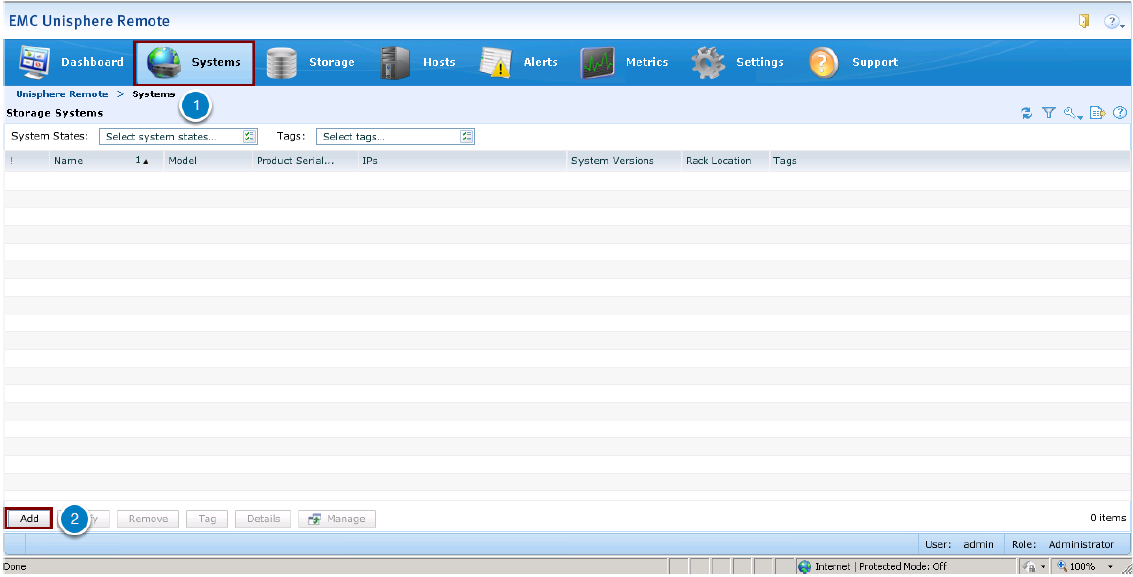
Add a Storage System
This section details adding a storage system to Unisphere Remote for monitoring. Multiple systems can be administered from this one console by adding them to Unisphere Remote. Configure the VNX2 to be Monitored

  • 1. Click the Systems tab
  • 2. Click Add to add a new storage system to be monitored by Unisphere Remote


Customize Link

  • 1. Click on the Dashboard tab
  • 2. Click the Customize link
  • 3. The Dashboard tab can be configured to display multiple dashboards containing any combination of widgets.

These widgets include:

  • • Alerts
  • • Systems List
  • • Capacity
  • • Systems Available Size
  • • Pools Available Size
  • • Metrics Storage


Alerting
The Alerts tab provides a list of storage system issues that you can resolve by performing the steps provided by the alert. You can use alerts to determine the cause of an issue, symptoms of an issue, and the actions that you can take to resolve it. The Alerts tab displays the following information for each alert:

  • • Severity
  • • Time
  • • Source
  • • Type
  • • Message

Note that the alerts listed are intentionally inserted into this lab for demonstration purposes.
Navigate to the Alerts Tab

  • 1. Click the Alerts tab from the top menu bar. You can see a list of alerts for the monitored systems
  • 2. Select one of the alerts in the list
  • 3. View the description in the Alert Information section at the bottom of the page where you can see details of the alert and any recommended actions


View Storage System Details Page
The Storage System Details page contains two sections. The top half of the page contains system details and capacity usage. The details include:

  • • System State
  • • Name
  • • Model
  • • Block Software Version
  • • File Software Version
  • • Tags

There is also a pie chart showing the current storage utilization of the specific storage system


EMC - VNX2 - VNX Monitoring and Reporting

1. Overview
VNX Monitoring and Reporting is a software solution that extends Unisphere for VNX capabilities by providing unified performance and capacity trending information of VNX storage systems. This solution complements Unisphere's health alerts and Analyzer archive files in order to improve the efficiency of your storage environment.
VNX Monitoring and Reporting automatically collects Block and File storage statistics along with configuration data and stores them in a database that can be viewed through dashboards and reports. This solution can retrieve information from one or several VNX storage systems, including legacy CLARiiON and Celerra systems, that are qualified for support. VNX Monitoring and Reporting is a versatile solution to help you understand storage utilization and workload patterns for problem diagnosis, trend analysis, and capacity planning

2. Hand-on Lab
Add a Storage System
The Adding a System page is where you specify the information required for VNX Monitoring and Reporting to access your storage system. You need to specify a unique name that will be used to identify this storage system and type of data collection; Unified, Block, or File. Unified data applies to integrated systems that contain both block storage (SAN) and file storage (NAS) hardware components. Legacy CLARiiON CX4 and Celerra NS systems that are supported can be added here as well

Adding a VNX System
  • 1. Click the Add New node to view the fields needed to add a storage system
  • 2. The Adding a System page displays the system information to be entered. Notice that the mandatory fields are indicated with a red asterisk


Reporting
Now that the VNX has been added to VNX Monitoring and Reporting, storage statistics and configuration data can be collected. VNX Monitoring and Reporting stores this information in a database that can be viewed through dashboards and reports.
  • 1. To view the reports, click Open Reporting Interface


Report Tree
On the left panel of the main page is a report tree where reports are organized into parent and child relationships. The report tree is a dynamic hierarchical tree used to navigate between nodes. You can browse the tree by clicking each entry; reports are generated and displayed in the main page.
  • 1. In the report tree, expand Systems > Summary > System Summary
  • 2. Under System Summary, select the Block entry representing your VNX system
  • 3. In the List of arrays section, click the entry for VNX5400


View Different Metrics
The main page displays a summary of the storage system components and statistics. As you scroll down this page, you can see that statistics are displayed in the form of charts, graphs, and lists.
  • 1. Observe the different types of system data collected


Analyze Read/Write Throughput and Bandwidth
VNX Monitoring and Reporting allows users to “drill-down” to underlying reports to get more detailed views of a selected component. Let’s take a look at the write performance of this VNX system. Note that your graphs may look different than the screenshots.
  • 1. Scroll down to analyze the Read/Write IOPS (IO/s) and Read/Write Bandwidth (MB/s) graphs
  • 2. In the Read/Write IOPS (IO/s) graph, hover your mouse over the Write IOPS line. Tracing the Write IOPS line willdisplay different IO values and timestamps of when the IO values were recorded


Analyze Storage Utilization
Let’s analyze the storage utilization of the VNX system.
  • 1. In the Block Usable Capacity (TB ) section, click the free space portion of the pie chart


View LUN Capacity
Scroll down to the LUNs Current Performance section to find the Demo LUN and view its capacity utilization. Click the entry for the Demo LUN.


EMC VNX VNX2 Technical Update - Deep Dive
Overview Link

Virtual VNX: Overview, Architecture & Use Cases

VNX Overview

Vnx series-technical-review

EMC VNX Unified Best Practices For Performance:Applied Best Practices Guide

NAS Meets SAN – an intro to VNX Unified

EMC VNX Monitoring and Reporting

Jul 23, 2015

EMC - VNX2 - How DataMover Failover

..

The failover process consists of a Primary Data Mover failing and a designated Standby Data Mover being activated as a spare to take the Primary’s place. If a Primary Data Mover becomes unavailable, the Standby assumes the MAC and IP addresses of the Primary Data Mover and provides seamless and uninterrupted access to its file systems.
Creating a Standby Data Mover ensures continuous access to file systems. When a Primary Data Mover fails over to a Standby, the Standby Data Mover assumes the identity and functions of the failed Data Mover.
To act as a Standby server, a Data Mover must first be configured as a Standby for one or more Primary Data Movers. For example, you can have one Standby Data Mover acting as a Standby for three other active Data Movers. If one of the Primary Data Movers fails over, the Standby Data Mover assumes the IP and MAC addresses and functions of the failed Data Mover. The former Standby is now a Primary and is no longer available in a Standby capacity.
The Standby Data Mover must have the same type of network interface cards (NICs) as the Data Mover with which it is associated. Any FTP, archive, or Network Data Management Protocol (NDMP) sessions that are active when the failure occurs are automatically disconnected and must be manually restarted.


To detect a Data Mover failure, the Control Station monitors the various conditions of all Data Movers through the redundant internal networks that connect the Control Station to each Data Mover. If the Control Station detects a failure, it responds according to the policy type established when the Standby relationship was created. If the problem persists, and if CallHome or Email Home is configured, the Control Station calls EMC Customer Service or your service provider with a notification of the event and diagnostic information. Note: If the Control Station is not running, Data Mover failover cannot occur. When the Control Station returns to service, it will recognize the Data Mover failure and initiate the appropriate action depending on the automatic, retry, or manual failover policy

When any failover condition occurs, you can transfer functionality from the Primary to the standby Data Mover without disrupting the availability of the file system. The standby Data Mover assumes the following identities from the faulted Data Mover:
  • •Network identity — IP and MAC addresses of all its NICs
  • •Storage identity — File systems controlled by the faulted Data Mover
  • •Service identity — Shares and exports controlled by the faulted Data Mover The Standby Data Mover assumes user file system services (if the policy is set to automatic) within a few seconds of the failure, transparently, and without requiring users to unmount and remount the file system. The definition of failover is the process of immediately routing data to an alternate data path or device to avoid interrupting services in the event of a failure. 
The impact to service is dependent on the application’s ability to handle the change gracefully. During normal operation, the VNX Control Station continually monitors the status of all Data Movers. If a Primary Data Mover fails, the Control Station detects the failure via the NAS Master Control Daemon communication over the dedicated network. It instructs the Standby Data Mover to take over as Primary while forcing the original Primary, if it is still running, into a failed state. Once failover is enacted, the Standby Data Mover becomes the Primary and resumes the entire identity of the failed Data Mover. In most cases, this process should have little, or no noticeable effect on user access to data. The Data Mover failover process works the same way in systems with two Control Stations. In the event of a Primary Control Station failure the Standby Control Station assumes the Primary role and it is responsible for the Data Mover failover. ..


EMC VNX VNX2 Technical Update - Deep Dive
Overview Link

Virtual VNX: Overview, Architecture & Use Cases

VNX Overview

Vnx series-technical-review

EMC VNX Unified Best Practices For Performance:Applied Best Practices Guide

NAS Meets SAN – an intro to VNX Unified

EMC VNX Monitoring and Reporting

EMC - VNX2 - Snapsure

1. Usefull Link


2. Overview


SnapSure is a VNX for File feature that saves disk space and time by creating a point-in-time view of a file system. This logical view is called a checkpoint and can be mounted as a read-only file system. SnapSure is mainly used by low-activity, read-only applications such as backups and file system restores.
SnapSure is not a discrete copy product and does not maintain a mirror relationship between source and target volumes. It maintains pointers to track changes to the primary file system and reads data from either the primary file system or from a specified copy area. The copy area is referred to as a SavVol, and is defined as a VNX for File metavolume.


SnapSure checkpoints provide users with multiple point-in-time views of their data. In the illustration above the user’s live, production data is a business proposal Microsoft Word document. If they need to access what that file looked like on previous days, they can easily access read-only versions of that file as viewed from different times. This can be useful for restoring lost files or simply for checking what the data looked like previously. In this example, checkpoints were taken on each day of the week


PFS

  • A production file system, or PFS, is any typical VNX file system that is being used by an application or user.

Checkpoint

  • A point-in-time view of the PFS. SnapSure uses a combination of live PFS data and saved data to display what the file system looked like at a particular point-in-time. A checkpoint is thus dependent on the PFS and is not a disaster recovery solution. Checkpoints are also known as snapshots.

SavVol

  • Each PFS with a checkpoint has an associated save volume, or SavVol. The first change made to each PFS data block triggers SnapSure to copy that data block to the SavVol.

Bitmap

  • SnapSure maintains a bitmap of every data block in the PFS where it identifies if the data block has changed. Each PFS with a checkpoint has one bitmap that always refer to the most recent checkpoint.

Blockmap

  • A blockmap of the SavVol is maintained to record the address in the SavVol of each saved data block. Each checkpoint has its own blockmap.
..

EMC - VNX2 - Snapshot

1.Usefull Link


2. Overview


VNX Snapshot is a storage system-based software application that allows the user to create snapshots of pool-based LUNs. In fact, VNX Snapshots can only be used with pool LUNs. A snapshot is a virtual point-in-time copy of a LUN and takes only seconds to create. VNX Snapshots use a very different internal mechanism to that used by SnapView snapshots, though both are pointer-based. VNX Snapshot data may be in the original Primary LUN space or may have been written to a different location in the Pool. 
As a result of the Relocate on First Write (ROW) technology used, VNX Snapshots use appreciably less additional space than a full copy would use. A VNX Snapshot will use appreciably less space than that occupied by its Primary LUN, and will make more efficient use of space than SnapView Snapshots. 
An enabler gives the user access to VNX Snapshots, while a separate enabler allows the use of SnapView Snapshot and Clone technology. These two methods of making point-in-time copies are independent, and have limits which are independent of each other. 
They can coexist on the same storage system, and even on the same Pool LUNs. Note that VNX Snapshots cannot be used on Classic LUNs. Management of VNX Snapshots is performed through Unisphere or Navisphere Secure CLI. A host-based utility, SnapCLI, can perform a subset of the VNX Snapshot management operations, and will be discussed later.

The Primary LUN is the production LUN that is replicated. This is the LUN that is in use by the application (and the production host) and it is not visible to secondary hosts. When a snapshot is attached to a snapshot mount point, it is made available to a secondary host.
A Snapshot is the VNX Snapshot equivalent of the SnapView session.
  • A Snapshot Mount Point is the VNX Snapshots equivalent of the SnapView Snapshot – a virtual LUN that is used to make the replica visible to a secondary host. The SMP is associated with the primary LUN, and can be used for snapshots of that LUN only.
  • Consistency Groups allow primary LUNs or Snapshot Mount Points to be grouped together persistently. Operations can be performed on the group as a single object


VNX Snapshots address limitations of copy on first write (COFW) SnapView Snapshots. The VNX Snapshot technology is redirect on write (ROW or ROFW). VNX Snapshots are limited to Pool-based LUNs (i.e. not Classic LUNs). Up to 256 writeable VNX Snapshots can be associated with any Primary LUN, though only 255 are user visible. Because the VNX Snapshot uses pointers rather than a full copy of the LUN, it is space-efficient, and can be created almost instantaneously. The ROW mechanism does not use a read from the Primary LUN as part of its operation, and thus eliminates the most costly (in performance terms) part of the process.

  • A Reserved LUN Pool is not required for VNX Snapshots - VNX Snapshots use space from the same Pool as their Primary LUN. Management options allow limits to be placed on the amount of space used for VNX Snapshots in a Pool.
  • VNX Snapshots allow replicas of replicas; this includes Snapshots of VNX Snapshots, Snapshots of attached VNX Snapshot Mount Points, and Snapshots of VNX Snapshot Consistency Groups. VNX Snapshots can coexist with SnapView snapshots and clones, and are supported by RecoverPoint.
  • If all VNX Snapshots are removed from a Thick LUN, the driver will detect this and begin the defragmentation process. This converts Thick LUN slices back to contiguous 256 MB addresses. The process runs in the background and can take a significant amount of time. The user can not disable this conversion process directly, however, it can be prevented by keeping at least one VNX Snapshot of the Thick LUN.

A VNX Snapshot Mount Point (SMP) is a container that holds SCSI attributes
•WWN
•Name
•Storage Group LUN ID, etc


The VNX Snapshot Consistency Group allows Snapshots to be taken at the same point in time on multiple Primary LUNs. If individual Snapshots were made of the Primary LUNs, it is possible that updates to one or more Primary LUNs could take place between the time of the Snapshot on the first Primary LUN and the time of the Snapshot on the last Primary LUN. This causes inconsistency in the Snapshot data for the set of LUNs. The user can ensure consistency by quiescing the application but this is unacceptable in many environments.

  • A Consistency Group can have a Snapshot taken of it, and can have members added or removed. Restore operations can only be performed on Groups that have the same members as the Snapshot. This may require modifying Group membership prior to a restore.
  • When a Snapshot is made of a Group, updates to all members are held until the operation completes. This has the same effect as a quiesce of the I/O to the members, but is performed on the storage system rather than on the host.
  • VNX Snapshot Set – a group of all Snapshots from all LUNs in a Consistency Group. For simplifications, is referred to as CG Snap throughout the material. VNX Snapshot Family – a group of Snaps from the same Primary LUN

Jul 22, 2015

EMC - VNX - LUN Migration


LUN Migration is an important feature for use in storage system tuning. LUN Migration moves data from a source LUN to a destination LUN (of the same or larger size) within a single storage system. This migration is accomplished without disruption to applications running on the host. LUN Migration can enhance performance or increase disk utilization for the changing business needs and applications by allowing the user to change LUN type and characteristics, such as RAID type or size (Destination must be the same size or larger), while production volumes remain online. LUNs can be moved between Pools, between RAID Groups, or between Pools and RAID Groups.
When a Thin LUN is migrated to another Thin LUN, only the consumed space is copied. When a Thick LUN or Classic LUN is migrated to a Thin LUN, the space reclamation feature is invoked and only the consumed capacity is copied


  • LUN migration allows data to be moved from one LUN to another, regardless of RAID type, disk type, LUN type, speed and number of disks in the RAID group or Pool, with some restrictions. The process involved in the migration is the same across all VNX systems.
  • The LUNs used for migration may not be private LUNs, nor may they be in the process of binding, expanding or migrating.
  • Either LUN, or both LUNs, may be metaLUNs, but neither LUN may be a component LUN of a metaLUN.
  • The destination LUN may not be part of SnapView or MirrorView operation. This includes Clone Private LUNs, Write Intent Log LUNs, and Reserved LUN Pool LUNs.
Note the Destination LUN is required to be at least as large as the Source LUN, but may be larger


The LUN Migration feature is transparent to any host accessing the Source LUN, though there may be a performance impact.
Copying of data proceeds while the Source LUN is available for read/write access, and the copy process may be terminated at any time. Once all data is copied, the Destination LUN assumes the full identity of the Source LUN, and the Source LUN is destroyed as a security measure. If the migration is terminated before completion, the source LUN will remain accessible to the host, and the destination will be destroyed as a security measure.
The host accessing the Source LUN sees no identity change, though of course the LUN size may have changed. In that case, a host utility, such as Microsoft Windows diskpart, can be used to make the increased space available to the host OS.

In the systems drop-down list on the menu bar, select a system. Select Storage > LUNs > LUNs. Navigate to the LUN that will be the source LUN for the migration operation, and right-click Migrate


The “Start Migration” menu option configures and starts the LUN migration operation.
If the destination LUN does not belong to the SP that owns the source LUN, the destination LUN will be trespassed to the SP that owns the source LUN before the migration starts.

  • Source LUN Name: Identifies the source LUN that will be participating in the migration operation.
  • Source LUN ID: Identifies the source LUN ID (iSCSI) or the WWN (Fibre Channel).
  • Source LUN Capacity: Identifies the capacity of the source LUN, for example, 5 GB.
  • Migration Rate: Sets the rate at which the data will be copied - valid values are Low, Medium, High, or ASAP.

Available Destination LUNs: Lists LUNs that are available to be destination LUNs. These LUNS must be the same size or larger than the source LUN


Useful Link

EMC VNX – LUN migration using VNX Snapshot

EMC VNX: LUN migration & provisioning using NAVISECCLI

LUN migration process

EMC VNX – LUN MIGRATION


EMC VNX VNX2 Technical Update - Deep Dive
Overview Link

Virtual VNX: Overview, Architecture & Use Cases

VNX Overview

Vnx series-technical-review

EMC VNX Unified Best Practices For Performance:Applied Best Practices Guide

NAS Meets SAN – an intro to VNX Unified

EMC VNX Monitoring and Reporting


EMC VNX2 - FAST VP

1. Useful Link


2. Background
Fully Automated Storage Tiering for Virtual Provisioning (FAST VP). FAST VP can both lower Total Cost of Ownership and simultaneously increase performance by intelligently managing data placement at a sub-LUN level. When FAST VP is implemented, the storage system measures, analyzes, and implements a dynamic storage tiering policy much faster and more efficiently than a human analyst could ever achieve.


VNX FAST VP, or Fully Automated Storage Tiering for Virtual Pools tracks data in a Pool at a granularity of 256 MB – a slice – and ranks slices according to their level of activity and how recently that activity took place. Slices that are heavily and frequently accessed will be moved to the highest tier of storage, typically Flash drives, while the data that is accessed least will be moved to lower performing, but higher capacity storage – typically NL-SAS drives. This sub-LUN granularity makes the process more efficient, and enhances the benefit achieved from the addition of Flash drives.
The ranking process is automatic, and requires no user intervention. When FAST VP is implemented, the storage system measures, analyzes, and implements a dynamic storage-tiering policy in a faster and more efficient way than a human analyst. Relocation of slices occurs according to a schedule which is user-configurable, but which defaults to a daily relocation. Users can also start a manual relocation if desired. FAST VP depends for its operation on tiers of disks – up to 3 are allowed, and a minimum of 2 are needed for meaningful FAST VP operation. The tiers relate to the disk type in use. Note that no distinction is made between 10k rpm and 15k rpm SAS disks, and it is therefore recommended that disk speeds not be mixed in a tier.
NOTE: VNX systems running MCx code use 256 MB slices. Other VNX models, such as the VNX5700 and VNX7500, use 1 GB slices.


FAST VP enables the user to create storage pools with heterogeneous device classes and place the data on the class of devices or tier that is most appropriate for the block of data. Pools allocate and store data in 256 MB slices (earlier versions used 1 GB slices) which can be migrated or relocated, allowing FAST VP to reorganize LUNs onto different tiers of the Pool. This relocation is transparent to the hosts accessing the LUNs.
For example, when a LUN is first created it may have a very high read/write workload with I/Os queued to it continuously. The user wants that LUN to have the best response time possible in order to maximize productivity of the process that relies on this storage. Over time, that LUN may become less active or stop being used and another LUN may become the focus of the operation. VNX systems configured with EMC’s FAST VP software would automatically relocate inactive slices to a lower storage tier, freeing up the more expensive storage devices for the newly created and more active slices.
The administrator can use FAST VP with LUNs regardless of whether those LUNs are also in use by other VNX software features, such as Data Compression, SnapView, MirrorView, RecoverPoint, and so on.
The tiers from highest to lowest are Flash, SAS, and NL-SAS, described in FAST VP as Extreme Performance, Performance, and Capacity respectively. FAST VP differentiates each of the tiers by drives type, but it does not take rotational speed into consideration. EMC strongly encourages to avoid mixing rotational speeds per drive type in a given pool. FAST VP is not supported for RAID groups because all the disks in a RAID group, unlike those in a Pool, must be of the same type (all Flash, all SAS, or all NL-SAS). The lowest performing disks in a RAID group determine a RAID group’s overall performance.


FAST VP policies are available for storage systems with the FAST VP enabler installed. The FAST VP feature automatically migrates the data between storage tiers, and within storage tiers, to provide the lowest total cost of ownership. FAST VP Pools are configured with different types of disks (Flash, SAS, and NL-SAS) and the storage system software continually tracks the usage of the data stored on LUNs in the Pools. Using these LUN statistics, the FAST VP feature relocates data (At a granularity of 256 MB) to the storage tier that is best suited for the data, based on the policy. Relocation within a tier ensures that hot spots are reduced or eliminated.

  • Use the “Highest Available Tier” policy when quick response times are a priority.
  • A small portion of a large set of data may be responsible for most of the I/O activity in a system. FAST VP allows for moving a small percentage of the “hot” data to higher tiers while maintaining the rest of the data in the lower ties. The “Auto Tier” policy automatically relocates data to the most appropriate tier based on the activity level of each data slice.
  • The “Start High, then Auto Tier” is the recommended policy for each newly created pool, because it takes advantage of the “Highest Available Tier” and “Auto-Tier” policies.
  • Use the “Lowest Available Tier” policy when cost effectiveness is the highest priority. With this policy, data is initially placed on the lowest available tier with capacity.
  • User can set all LUN level policies except the “No Data Movement” policy both during and after LUN creation. The “No Data Movement” policy is only available after LUN creation. If a LUN is configured with this policy, no slices provisioned to the lUN are relocated across tiers.


Provided the FAST enabler is present, select the Tiering tab from the Storage Pool Properties window to display the status and configuration options.
Scheduled means FAST VP relocation is scheduled for the Pool. Data relocation for the pool will be performed based on the FAST schedule in the Manage Auto-Tiering dialog. If a tier fills to 90% capacity, data will be moved to another tier.
The Relocation Schedule button launches the Manage Auto-Tiering dialog when pressed.
Data Relocation Status has several states. Ready means no relocations in progress for this pool, Relocating means relocations are in progress for this pool and Paused means relocations are paused for this pool.
Data to Move Down is the total amount of data (in GB) to move down from one tier to another; Data to Move Up is the total amount of data (in GB) to move up from one tier to another; Data to Move Within is the amount of data (in GB) that will be relocated inside the tier based on I/O access.
Estimated time for data relocation is the estimated time (in hours) required to complete data relocation
Note: If the FAST enabler is not installed, certain information will not be displayed.
Tier Details shows information for each tier in the Pool. The example Pool has 2 tiers, SAS (Performance) and NL-SAS (Capacity).
Tier Name is the Name of the tier assigned by provider or lower level software.


3. Hand-on Lab

From the top menu:
1. Hover over Storage
2. Select Storage Pools


In the Pools section:
1. Locate and select the Marketing - Social Media pool
2. Click the Properties button in the bottom menu


In the Properties window:
1. Navigate to the Tiering tab. Notice that we have the ability to use three different tiers in a single pool (Extreme Performance, Performance, and Capacity). You can also see that each tier has its own RAID Configuration.
2. Click OK to exit the properties window


Create LUN
1. Right-click the Marketing - Social Media pool
2. Select Create LUN


In the Create LUN window:
1. Select the size of the LUN to be 10GB
2. Name the LUN Marketing - Social Media Pictures and Videos


Lowest Available Tier
1. Once the LUN has been named, select the Advanced tab at the top of the window
2. In the FAST Settings section, change the Tiering Policy to Lowest Available Tier
3. Click Apply


...

May 19, 2015

Hand-on - EMC VNX2 - Hot Spare Policy

Hot Spare Policy in Unisphere. 
Because any suitable unbound drive can now be used as a permanent spare, Hot Spare Policies are used to monitor the number of unbound drives. This is intended to prevent unwanted situations where no hot spares are unintentionally left on the array.

1. Hover over System
2. Click Hot Spare Policy


Note the Recommended Hot Spare Policy is 1 per 30 disks.
Click NL SAS. The Hot Spare Policy for the NL SAS drives has already been changed to No Hot Spares.
Note that this does not mean there will be no hot spares for NL SAS drives. Any unbound drive will still be used as a hot spare in the event of a drive failure. No Hot Spares only means the Hot Spare Policy will not reserve any drives to be a hot spare and you will not be warned if all of the drives are bound


Change the Policy


Change the Policy - 1 per 10
After doing this, you see that the number of disks to keep unused changes to 2 disks. This is because you set the policy to keep 1 out of every 5 drives as a hot spare. Since you have 10 SAS Flash drives total, the policy reserves 2 drives.
Even though Joe wants to have enough hot spares to be extra safe when the new drives arrive, keeping 1 out of every 5 drives for a hot spare is wasting a lot of drives. You decide to change the policy to 1 per 10 instead. Use the drop down menu to change the policy to 1 per 10.


Apply Changes
Notice that the number of disks to keep unused changes to 1 disks. This number will increase depending on how many drives Joe ordered to be added to the system. If even 1 new drive is added, the number to reserve for hot spares will increase to 2, which meets Joe's requirement of having at least 2 spare Flash drives available at any time.